
A dock is the least glamorous thing you will buy for a laptop and the one most likely to disappoint you. Not because docks are bad, but because whether one works depends less on the dock than on the port you plug it into. Before the picks, one page of compatibility — then eight options that cover everything from a backpack dongle to a desk that never gets unplugged.

Read This Before You Buy Anything
Not every USB-C port carries video. A DP Alt Mode port is often marked with a DisplayPort symbol; a Thunderbolt 4 port is marked with a bolt and the number 4. A bare USB-C port with no marking may be data and charging only, and no dock can add video to it. Check the laptop’s spec sheet first — this is the single most common cause of a “broken” dock.
The second thing to know is how a dock produces a second display. Native DP Alt Mode with MST splits one video stream from your GPU and needs no drivers — but MST extended desktop is a Windows and ChromeOS feature. On macOS, MST displays are mirrored, not extended. DisplayLink works differently: it sends compressed video over USB data and needs a driver, which is exactly why it can work around Mac limits.
And those Mac limits are in the silicon, not the dock. Base M1 and M2 chips drive one external display; base M3 gained a second only with the lid closed; base M4 and M5 support two. Pro and Max chips go further. No native-video dock changes that number.
The Travel Picks
If you want something that lives in a backpack and drives one screen in the library, the Sabrent 6-in-1 Travel Hub is the minimum viable version: one HDMI at 4K/30Hz, a USB-A 3.0 and a USB 2.0 port, SD and microSD slots, and 60W power delivery passthrough, all bus powered with no brick to carry.
The Belkin 7-Port USB-C Hub adds what students actually miss — a 3.5mm audio jack — alongside two USB-A 3.0 ports at 5Gbps, a USB-C, SD and microSD readers, 4K HDMI and 100W PD passthrough, and works across Windows, macOS, ChromeOS and iPadOS. One caution: Belkin’s spec table lists 4K/60Hz while its own copy elsewhere cites HDMI 1.4, which cannot carry 4K/60. Plan around 4K/30Hz.
The Rosewill RHUB-M8 is the fastest of the three at 10Gbps across two USB-C and one USB-A port, with HDMI 2.0 at a genuine 4K/60Hz, Gigabit Ethernet, SD and TF readers and up to 85W of passthrough charging — 90 grams, one year of parts and labour.
The Desk Docks
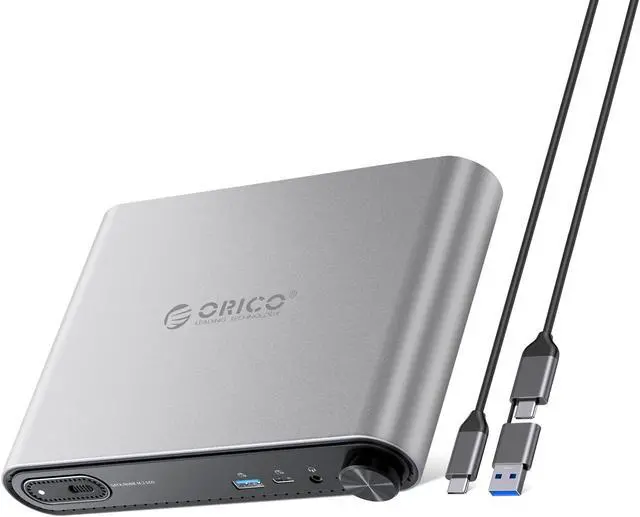
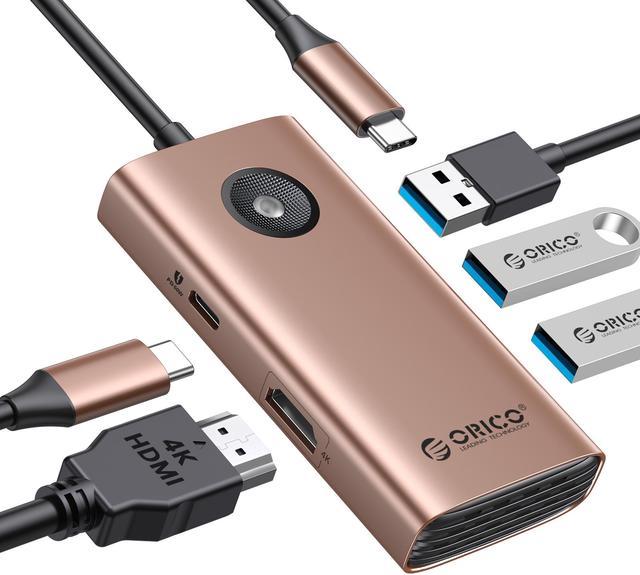
The ORICO PTM1 is the interesting one: a ten-port dock with 4K/60Hz HDMI, Gigabit Ethernet, 10Gbps USB-A and USB-C, a headphone jack and a physical volume knob — plus a detachable M.2 NVMe enclosure that slides out and becomes a portable SSD. There is a PD 100W input port for powering the hub when you attach high-draw devices.
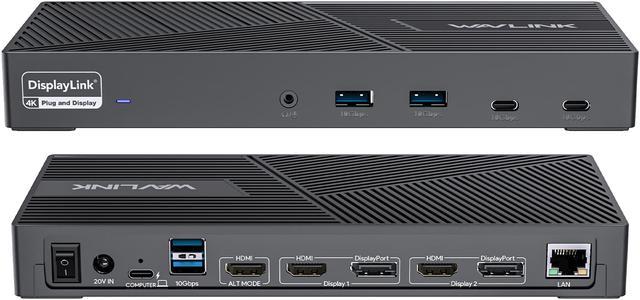
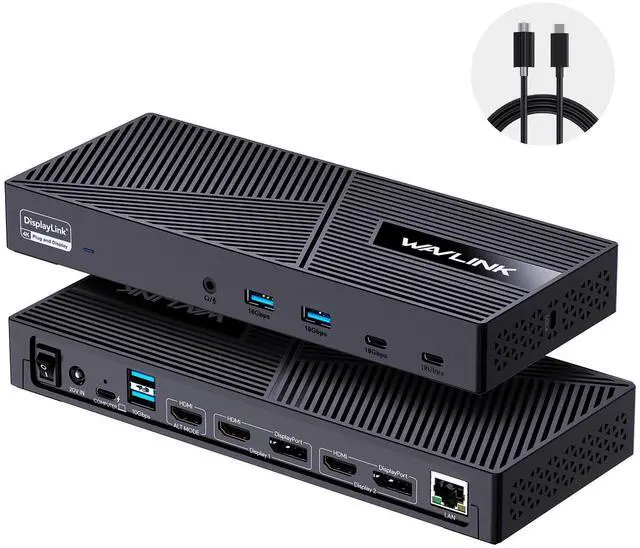
If you need two monitors on a Windows laptop without paying Thunderbolt money, the StarTech MST30C2HHPD does it through native MST with no driver setup: two HDMI outputs, five USB 3.0 ports, Gigabit Ethernet, a combo audio jack and 60W PD. Two things to note — 4K is single-display only, so the dual-monitor mode runs lower, and the listed OS compatibility stops at Windows 10.
The Thunderbolt Tier
Thunderbolt 4 guarantees things USB4 only permits: 40Gbps bidirectional, dual 4K/60Hz displays through a compatible dock, a 32Gbps PCIe floor and notebook charging. That is why a Thunderbolt dock behaves predictably where two “USB4 40Gbps” docks may not.
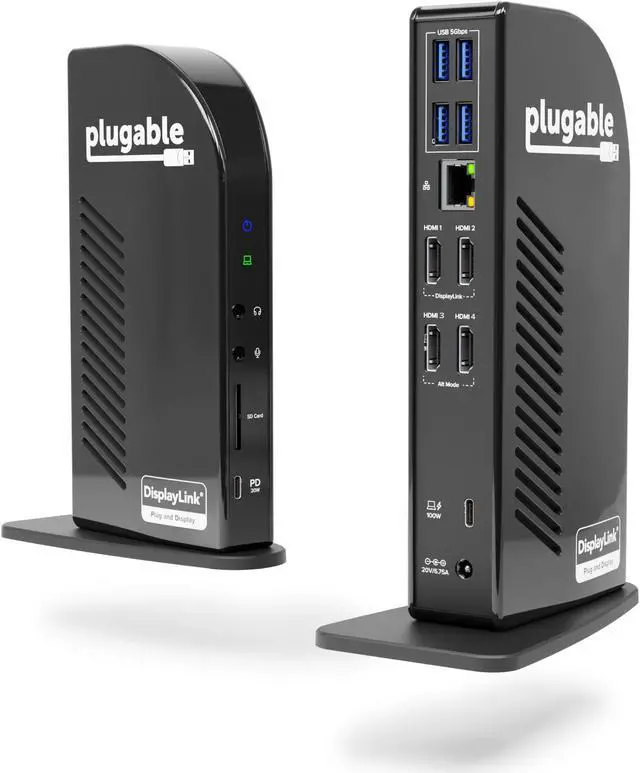
The Plugable Thunderbolt 4 Dock (TBT4-UD5) is the sensible version: 13 ports including two HDMI for a single 8K or dual 4K/60Hz, a downstream Thunderbolt 4 port, a 10Gbps USB-C, four USB-A, Gigabit Ethernet, SD and microSD, a combo audio jack, a Kensington lock slot, and up to 100W charging — 96W of it certified.
For heavy multi-display work, the Kensington SD5800T takes Thunderbolt 4, Thunderbolt 3, USB4 or plain USB-C hosts and offers two HDMI plus two DisplayPort, driving up to quad 4K on Windows or dual 6K on a MacBook, with 2.5G Ethernet, card readers, 16 total ports and 100W charging at 98W certified.
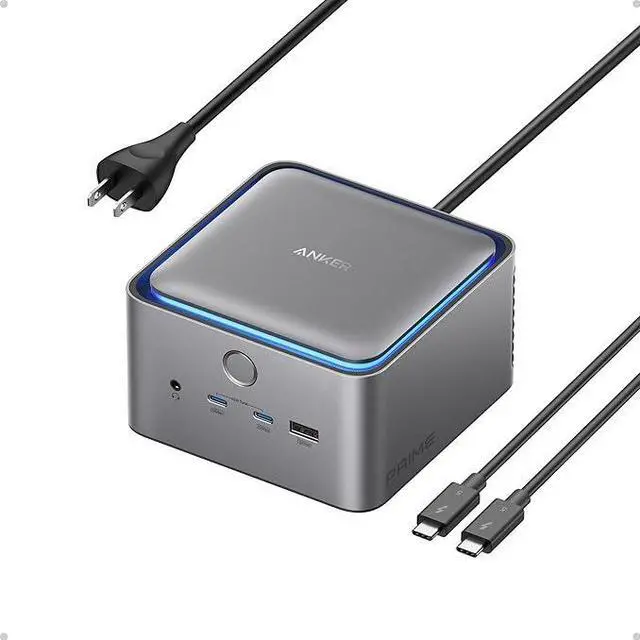
The Anker Prime TB5 Dock is the ceiling: 14-in-1 Thunderbolt 5 with up to 120Gbps of transfer, HDMI 2.1 or DisplayPort 2.1 plus two downstream Thunderbolt 5 video outputs, 2.5Gbps Ethernet, SD and microSD, 140W of PD 3.1 charging and an active cooling system. Its own listing carries the clearest warning in this category: Windows laptops with only DP Alt Mode, and MacBooks with standard M1, M2 or M3 chips, support just one external display no matter what the dock offers.
How Much Charging Do You Actually Need?

A 13 or 14-inch ultrabook or MacBook Air typically ships with a 30 to 65W charger, so a 60 to 65W dock keeps it topped up while you work. A 15 or 16-inch machine generally wants 90 to 100W, which is why the premium docks land at 96 to 98W certified. A gaming laptop with a discrete GPU ships a 180 to 330W barrel-plug brick and will not charge at full load from any USB-C dock — the PD 3.1 ceiling is 240W and almost nothing reaches it.
Read the certified number, not the “up to” number. Vendors publish both because the wall brick has to power the dock’s own controllers, Ethernet PHY, video chips and downstream ports before anything reaches your laptop. And a bus-powered hub charges nothing — it draws from the same roughly 15W downstream budget it is meant to serve.
Why Your Ethernet Slows Down When You Plug In a Monitor
Power rides dedicated pins, but video and data share the same four high-speed lanes in a USB-C connector. Using two lanes for DisplayPort leaves the other two for SuperSpeed USB data; committing all four maximises resolution and drops the data path to USB 2.0. That is the real trade behind “4K/60 with USB 3.1” versus “5K with USB 2.0.”
So on a plain USB-C dock, adding a second display or raising a refresh rate is what starves your network port and your external SSD. Thunderbolt 4 and USB4 largely avoid this by tunnelling DisplayPort, PCIe and USB over one 40Gbps fabric with a guaranteed PCIe floor. Ethernet tiers follow the host interface directly — USB-C docks generally top out at 1GbE, Thunderbolt 4 at 2.5Gbps, Thunderbolt 5 at 10Gbps.
Three Practical Cautions
Heat. High-port-count docks throttle when they cook. Anker builds an active cooling fan into its 14-in-1; a bus-powered aluminium dongle driving 4K plus Ethernet plus an SSD has no such help. Give a dock airflow and do not bury it under a textbook.
Drivers. DisplayLink docks require a driver by design, and USB Ethernet controllers frequently need their own. Budget five minutes before assuming a dock is faulty.
Cables. Passive USB-C cables handle 5Gbps to about two metres but only about one metre at 10 or 20Gbps. A flaky dock is often a too-long cable. Compare current options in Newegg’s USB-C docking station listings.
Frequently Asked Questions
Why won’t my dock drive two monitors on my MacBook? Two separate reasons. First, MST extended desktop is a Windows and ChromeOS feature — on macOS, MST-connected displays are mirrored rather than extended, so a DisplayLink dock is the workaround. Second, base Apple Silicon caps the display count in hardware: base M1 and M2 support one external display, base M3 supports two only with the lid closed, and base M4 and M5 support two. No native-video dock changes that.
How many watts does my laptop need from a dock? Match the charger it shipped with. A 13 to 14-inch ultrabook or MacBook Air usually needs 30 to 65W, so a 60 to 65W dock is fine. A 15 to 16-inch laptop wants 90 to 100W. A gaming laptop with a discrete GPU ships a 180 to 330W brick and cannot be fully charged from any USB-C dock. Always shop on the certified wattage, not the “up to” figure.
Do I need Thunderbolt, or is USB-C enough? For coursework, a plain DP Alt Mode dock covering one monitor plus peripherals is usually enough. Thunderbolt 4 earns its place if you need guaranteed dual 4K/60Hz, faster Ethernet or fast external storage alongside video. Thunderbolt 5 is aimed at external GPUs, 8K or high-refresh multi-display and 10GbE — overkill for most students. Thunderbolt docks will not deliver full function through a standard USB-C port.
Why does my Ethernet or external drive slow down when a monitor is connected? Video and data share the same high-speed lanes in the USB-C connector. Driving a display takes two or four of those lanes, and whatever remains is split among Ethernet, USB-A ports and any attached storage. Thunderbolt 4 and USB4 reduce the problem by allocating bandwidth across a single 40Gbps fabric instead of letting the connections simply collide.
Read More
- Tom’s Hardware: Best Thunderbolt and USB-C Docks — Hands-on picks plus a clear breakdown of Ethernet speed tiers and Mac-versus-Windows display limits.
- Plugable: DisplayLink vs DP Alt Mode / MST — The clearest explanation of the compatibility question that decides whether your second monitor works.
- Plugable: External Display Support on Apple Silicon — Exactly how many external displays each M-series chip can drive, and what a dock can and cannot change.
- Intel: Thunderbolt 4 — The guaranteed minimums behind the standard, and how to identify a Thunderbolt 4 port by its markings.
- Newegg: USB-C Docking Stations — Filter current docks by port count, video outputs, Ethernet speed and charging wattage.