
If you are shopping for an affordable laptop and hoping to use Adobe Premiere Pro and Photoshop, the big question is simple: can a roughly $500 system actually keep up? The honest answer is yes for light creative work, but only if you keep expectations in check. Think short social videos, basic photo edits, simple layered graphics, and everyday multitasking. Once you move into heavy multicam editing, large RAW batches, or effects-packed 4K projects, budget hardware starts showing its limits fast.
That is why the smartest way to shop is not by chasing the lowest price alone, but by focusing on the specs that actually affect Adobe performance. Memory, CPU power, storage speed, and thermal headroom matter far more than a flashy label. In this guide, we break down what a budget laptop can realistically do and use one current Acer Aspire Go 15 configuration as a practical shopping reference.
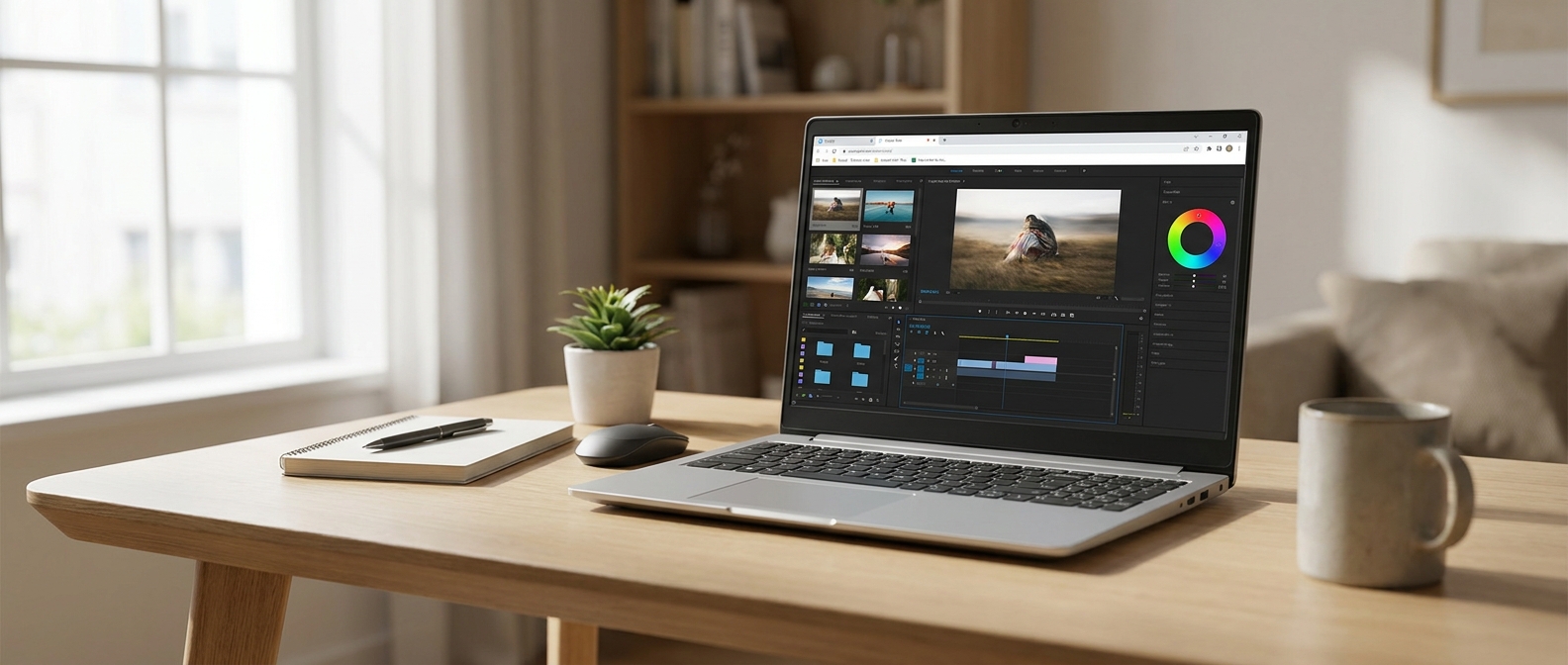
Key Question 1: What Does a $500 Laptop Need to Handle Adobe at All?
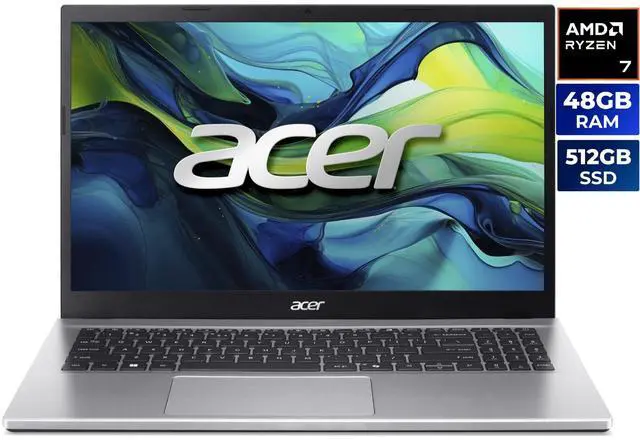
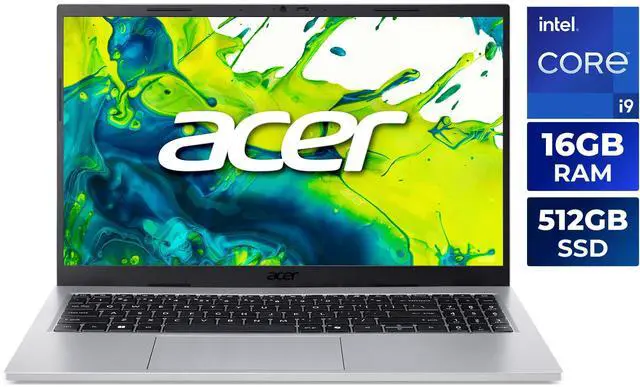
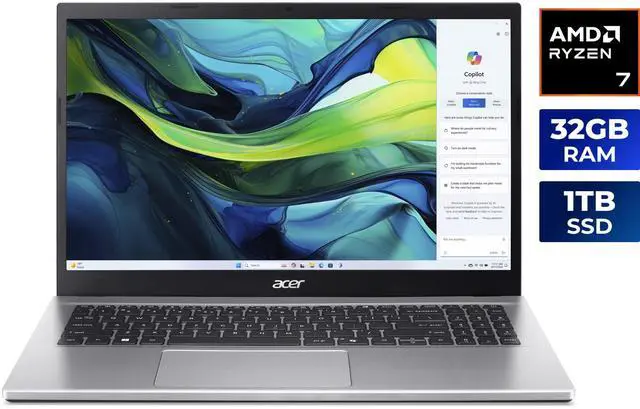
For budget creative work, RAM is the first spec to watch. Photoshop gets a big boost from enough memory to keep large files, layers, and multiple tabs responsive. Premiere Pro also benefits from more RAM because it helps with timeline playback and background tasks. In the configurations considered here, the standout example is a 15.6-inch Acer Aspire Go 15 with an Intel Core i9-13900H, paired with either 32GB or 48GB of memory and a 512GB SSD. That is a rare combination for this price range because it prioritizes practical capacity over gimmicks.
Integrated graphics matter too, but not in the way many shoppers expect. Intel Iris Xe Graphics and AMD Radeon Graphics both use shared system memory instead of dedicated VRAM. That makes them perfectly fine for basic GPU-accelerated effects, interface responsiveness, and photo previews, but not ideal for serious color grading or complex effects stacking. In other words, a budget laptop can absolutely be a creator tool as long as the workload stays modest and the system has enough RAM to avoid constant slowdowns.
- Photoshop: good for layered images, web graphics, and moderate batch editing
- Premiere Pro: good for short-form projects, 1080p timelines, and simple transitions
- Shared-memory graphics: fine for light acceleration, not strong for demanding effects
- SSD speed: important for loading projects, caching previews, and moving media
The CPU is the other major piece of the puzzle. The Intel Core i9-13900H is a 14-core processor with 6 performance cores and 8 efficiency cores, 24 MB of L3 cache, and much more performance headroom than most bargain laptops. The Ryzen 7 5825U is an 8-core chip that is older and more efficiency-focused, but still solid for everyday creative work. So the real takeaway is not that a $500 laptop is a powerhouse, but that some budget models now have enough CPU and memory to be genuinely useful for light Adobe tasks.
Key Question 2: Is Integrated Graphics the Dealbreaker?
For many shoppers, the concern is immediate: if there is no discrete GPU, is the laptop automatically a no-go for creative work? Not necessarily. Premiere and Photoshop both benefit from GPU acceleration, but for everyday projects, the biggest bottleneck is often not graphics power. It is whether the machine can keep enough data in memory and feed the CPU without stalling. A laptop with integrated graphics and 32GB or 48GB of RAM can feel much more capable than expected when the footage is 1080p and the effects are simple.
The real problems show up when you ask the system to do multiple heavy things at once: several 4K streams, noise reduction, Warp Stabilizer, complex masks, layered adjustment workflows, or long exports while keeping the project open. That is when integrated graphics and shared memory become a clear limitation. The machine may still function, but playback gets less smooth, previews take longer, and exports stretch out.
There is also a difference between how Photoshop and Premiere stress a laptop. Photoshop tends to reward RAM more directly because it can keep more layers and canvases active before the system falls back to disk. Premiere is more sensitive to sustained CPU performance, codec complexity, and storage speed. In many cases, a fast SSD and plenty of memory will do more for your day-to-day experience than a stronger GPU paired with too little RAM.
- Best case for integrated graphics: 1080p editing, basic color correction, and simple text overlays
- Borderline case: 4K footage with proxy workflow and light effects
- Poor fit: multicam, heavy compositing, advanced grading, or frequent export jobs
- Most important support specs: RAM capacity, SSD speed, and consistent cooling
Key Question 3: Why Does 32GB or 48GB RAM Matter So Much?
In this price class, RAM is the quiet upgrade that makes the biggest real-world difference. A lot of budget laptops still ship with 8GB or 16GB, which is enough for browsing and office work but starts to feel cramped once Adobe apps and browser tabs are open together. The Acer Aspire Go 15 configurations here stand out because they come with either 32GB or 48GB of RAM, both of which are well above the usual entry-level baseline.
That extra capacity does not magically turn an integrated-graphics laptop into a workstation, but it does delay the point where the system starts using the SSD as overflow memory. In Adobe apps, that matters because disk-based swapping is much slower than RAM. With 32GB, light creators can keep Photoshop responsive while checking references, music, and a few other apps. With 48GB, the laptop has more room for larger Photoshop files, longer Premiere projects, and heavier multitasking.
The memory type matters as well. The Intel model uses DDR4 memory at 3200 speed, and the AMD model also uses DDR4 3200 memory. That is not the newest format, but in this use case capacity matters more than chasing the latest spec. At this budget level, moving from 16GB to 32GB or 48GB often makes a bigger difference than a modest processor bump.
- 32GB: strong for light-to-moderate Adobe work and multitasking
- 48GB: better for larger files and longer creative sessions
- DDR4 3200: enough for this class, even if it is not cutting-edge
- More RAM helps reduce swapping, which keeps the laptop feeling responsive
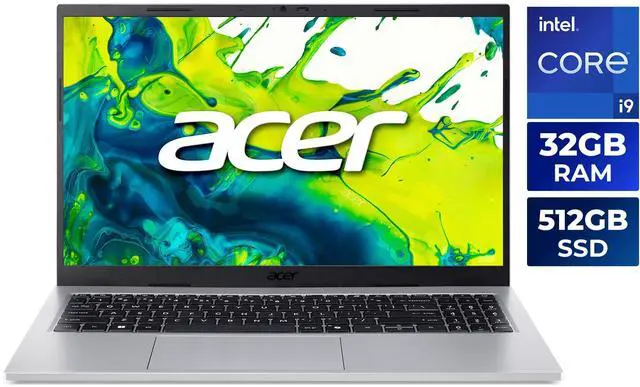
If you are wondering whether 48GB is overkill, the answer depends on how you work. For someone doing quick edits or occasional photo retouching, yes, it may be more than necessary. But if you keep lots of browser tabs open, work in Photoshop with high-resolution layers, and jump into Premiere projects that run longer than a few minutes, the extra headroom feels less like excess and more like peace of mind.
Key Question 4: Which Specs Matter More Than the Sticker Price?
When shoppers set a hard $500 budget, it is easy to focus on the processor name and ignore everything else. For creative work, that is a mistake. A laptop can have a strong CPU and still feel slow if it has too little RAM, a weak display, or limited storage. In the Acer Aspire Go 15 examples, you get a 15.6-inch 1920 x 1080 IPS display, a 512GB PCIe SSD, Wi-Fi 6, Bluetooth 5.3 or 5.1 depending on configuration, and a thin-and-light chassis weighing around 3.37 to 3.92 pounds.
Those details matter because Adobe work is about more than benchmark numbers. A 15.6-inch FHD IPS panel is a sensible baseline for editing because it gives you room for the timeline and panels without constant zooming. A 512GB SSD gives you enough space for the operating system, Adobe installs, scratch files, and a few active projects. HDMI 2.1 and multiple USB ports make it easier to connect an external monitor or fast storage, which can stretch the usefulness of the laptop if you are building a simple home-studio setup.
Battery life, however, is more modest at up to 6.5 hours. That is fine for classes, meetings, and light mobile use, but creators should expect to stay near power when editing or exporting. So the best way to think about this laptop is as a value-focused desktop replacement for light creator tasks, not an all-day mobile production machine.
- Display: 15.6-inch FHD IPS is the right baseline for budget editing
- Storage: 512GB PCIe SSD is workable, but project libraries may outgrow it
- Ports: HDMI 2.1 and USB-C help with external monitor and storage workflows
- Weight: roughly 3.37 to 3.92 lbs, depending on the configuration
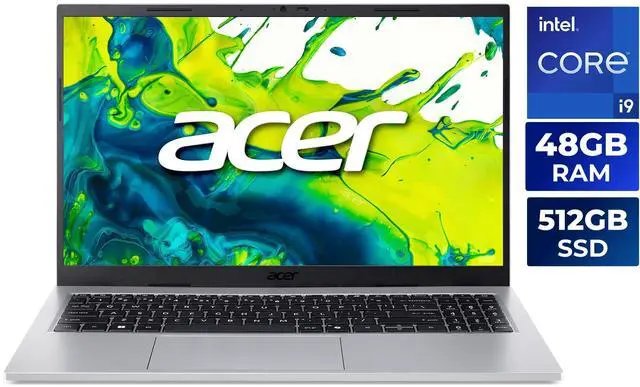
Product Spotlight: Acer Aspire Go 15 as a Budget Creator Baseline
What makes the Acer Aspire Go 15 interesting is not that it is a full studio laptop. It is that it is a budget laptop with unusually strong memory options. The Intel Core i9-13900H version combines a 14-core processor with 32GB or 48GB of RAM and a 512GB PCIe SSD, while the AMD Ryzen 7 5825U version offers 32GB or 48GB of DDR4 memory with a 512GB PCIe Gen4 SSD. Both configurations use integrated graphics, both include a 15.6-inch 1920 x 1080 IPS display, and both ship with Windows 11 Home.
For shoppers who want the strongest CPU on paper, the Intel model is the more aggressive pick. The Core i9-13900H brings a 24 MB L3 cache and a much higher-performance class than the average budget chip. The AMD Ryzen 7 5825U is less flashy, but it is still a practical choice for everyday editing, especially if you like the Ryzen platform and prefer a familiar balance of performance and efficiency. In both cases, the real win is memory capacity in a category where many competitors still come up short.
There are also a few quality-of-life features that matter more than you might think. Acer PurifiedVoice with AI noise reduction and dual built-in microphones are helpful for calls, voiceovers, and content review. The FHD webcam with blue glass and Acer TNR is not a replacement for a dedicated camera, but it is a nice step up for meetings and quick creator check-ins. For students, home users, and small-business buyers who want one laptop for work, school, and light Adobe tasks, those extras make the system feel more complete.
- Intel model: Core i9-13900H, 14 cores, 32GB or 48GB RAM, 512GB PCIe SSD
- AMD model: Ryzen 7 5825U, 8 cores, 32GB or 48GB RAM, 512GB PCIe Gen4 SSD
- Both: 15.6-inch FHD IPS display, integrated graphics, Windows 11 Home
- Best fit: light photo editing, short-form video, general productivity, and multitasking
Comparison: What You Get for Creative Work at This Price
To answer the budget-laptop question honestly, it helps to compare this class against a typical low-cost machine. Many affordable laptops still offer 8GB or 16GB of RAM, a lower-power processor, and the same integrated-graphics approach. That can be fine for browsing, notes, and casual media, but it gets fragile once Adobe software enters the picture. The Acer Aspire Go 15 configurations here do not eliminate every creative bottleneck, but they raise the floor in ways that matter.
Here is the plain-language version: if you are editing a short YouTube clip, building a thumbnail, or retouching photos, the jump from 16GB to 32GB can feel bigger than the jump between two midrange integrated GPUs. If you step up to 48GB, the gain is mostly stability and multitasking comfort, not a dramatic improvement in export speed. And if your work regularly includes 4K, heavy effects, or color grading, neither of these integrated-graphics systems should be treated as a long-term replacement for a dedicated-GPU creator laptop.
- Budget laptop with 8GB to 16GB RAM: fine for everyday use, but limited for Adobe multitasking.
- Budget laptop with 32GB RAM: workable for light Photoshop and Premiere tasks with realistic expectations.
- Budget laptop with 48GB RAM: better multitasking and larger project comfort, but still limited by integrated graphics.
- Dedicated-GPU creator laptop: best for frequent exports, heavy effects, and serious video workflows.
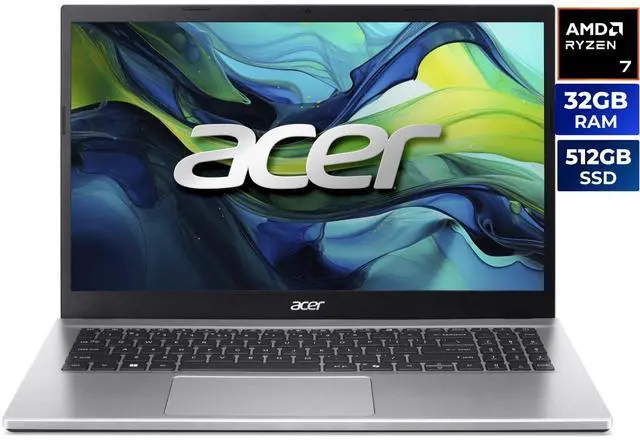
A helpful way to think about it is this: RAM determines how much the laptop can keep active in memory, while integrated graphics determines how far it can go when the project becomes visually demanding. If your workflow is mostly still images with the occasional short clip, the memory upgrade may be enough. If you plan to do real post-production work, you will be better served by a system with a dedicated GPU, more storage, and stronger sustained cooling.
Recommendations: Who Should Buy What?
If you are a student, casual creator, or small-business user who mainly edits for social media, the Acer Aspire Go 15 with 32GB RAM is the sweet spot. It gives you enough memory to keep Adobe apps comfortable, a modern 14-core Intel option or a capable Ryzen 7 option, and a 512GB SSD that is fine for starter projects. This is the point where a budget laptop starts feeling genuinely useful for light production instead of merely possible.
If you know you will keep multiple apps open and want the longest possible runway before the machine starts feeling cramped, the 48GB versions are the smarter choice. They do not make the laptop faster in every scenario, but they make it harder to overload. That matters if you often work with large layered PSD files, research in multiple browser tabs, and open Premiere without closing everything else first.
If you expect to do regular client video work, color-heavy editing, or anything beyond basic timeline assembly, it is worth spending more. At that point, the integrated graphics limitation matters more than the RAM advantage, and a discrete GPU will save you time every week. Bottom line: this class is a smart fit for light creative use, but it is still a compromise for serious production.
- Buy 32GB if you want the best value for light Adobe work.
- Buy 48GB if you multitask heavily or want more breathing room for larger files.
- Skip this class if your Premiere workflow regularly includes heavy effects or 4K finishing.
- Use an external monitor and fast storage if you want to stretch the laptop further.
So, can a $500 laptop run Premiere Pro and Photoshop? Yes, if the work is light and the configuration is chosen wisely. The real limit is not the brand name on the lid; it is whether the system has enough memory, enough CPU headroom, and realistic expectations about integrated graphics. For budget shoppers, that is the important takeaway: a well-specced laptop can absolutely handle light Adobe work, but it cannot beat physics.
Acer Aspire Go 15 with 32GB RAM and Intel Core i9-13900H
Acer Aspire Go 15 with 48GB RAM and Intel Core i9-13900H
Acer Aspire Go 15 with 32GB RAM and AMD Ryzen 7 5825U
Acer Aspire Go 15 with 48GB RAM and AMD Ryzen 7 5825U
FAQ Wrap-Up
Can a $500 laptop run Photoshop well enough for real use? Yes, for light to moderate editing. A budget laptop with 32GB or more RAM can handle layered images, web graphics, and routine retouching much better than 8GB or 16GB models.
Can a $500 laptop handle Premiere Pro for everyday editing? Yes, for short-form projects, 1080p timelines, and simple cuts or transitions. If you regularly work with 4K footage, heavy effects, or multicam edits, you will want a laptop with a dedicated GPU.
Is 32GB RAM enough for Adobe apps in this price range? For most light creators, yes. 32GB gives you enough headroom for Photoshop, Premiere, and a few browser tabs without immediately pushing work onto the SSD.
Is 48GB RAM worth the upgrade? It is worth considering if you multitask heavily, keep large Photoshop files open, or want more breathing room in Premiere. It will not transform export times by itself, but it can make the laptop feel smoother under load.
What matters most besides the price tag? RAM, CPU strength, SSD speed, and cooling matter more than the sticker price alone. Integrated graphics can work for light editing, but enough memory and a capable processor are what keep Adobe apps usable on a budget laptop.
Frequently Asked Questions
Can a $500 laptop run Photoshop smoothly?
Yes, but mainly for light to moderate editing. A budget laptop with 32GB of RAM or more can handle layered images, web graphics, and standard retouching much more comfortably than an 8GB or 16GB model.
Can a $500 laptop handle Premiere Pro for video editing?
Yes, for short-form projects, 1080p timelines, and simple cuts or transitions. Once you start working with 4K footage, heavy effects, or multicam timelines, the lack of a dedicated GPU becomes a major limitation.
Is 32GB RAM enough for Adobe work at this price?
For most light creators, yes. 32GB provides enough headroom for Photoshop, Premiere, and a few browser tabs without immediately pushing work to the SSD, which helps the laptop stay responsive.
Is 48GB RAM worth paying more for?
It is worth it if you multitask heavily, keep large Photoshop files open, or want extra breathing room in Premiere. It will not dramatically speed up exports on its own, but it can reduce slowdowns and improve day-to-day comfort.
What matters more than the price tag for creative work?
RAM capacity, CPU performance, SSD speed, and cooling matter more than the sticker price alone. Integrated graphics can work for light editing, but the combination of memory and processor strength is what keeps Adobe apps usable on a budget laptop.
Read More
- Adobe Premiere Pro system requirements — Official Adobe requirements help you compare a budget laptop against the app’s baseline needs.
- Adobe Photoshop system requirements — A useful reference for checking whether your laptop has enough RAM, storage, and graphics support.
- Acer Aspire Go 15 official product page — The manufacturer page shows the laptop family, features, and available configuration options.
- The Verge review of budget laptops for everyday use — General laptop coverage from a major tech publication can help you compare budget-tier tradeoffs.
- Notebookcheck laptop reviews and benchmarks — Detailed benchmarks and thermal testing are helpful when evaluating a low-cost laptop for creative workloads.
Related Posts
- Acer Aspire Go 15 Intel i9 vs Ryzen 7: Which One Fits Your Campus Routine?
- Wi-Fi 8 Is Almost Here: What ASUS’s Wi-Fi 8 Routers Actually Mean
- Best OLED Gaming Monitors in 2026
- How to Upgrade a Prebuilt Desktop PC: What You Can and Cannot Change
- Best PCIe 5.0 NVMe SSDs in 2026
Frequently Asked Questions
Answers to common questions about running Photoshop and Premiere Pro on a $500 laptop.