


One of the most consistent themes in laptop customer reviews — regardless of category, brand, or generation — is thermal performance. Users report it, reviewers measure it, and engineers obsess over it. So let’s address the question directly: Do users commonly report overheating or fan noise issues with laptops?
The short answer is yes — but with important context. Thermal behavior is one of the most misunderstood aspects of modern laptop design, and the right framing makes all the difference between buying with confidence and ending up frustrated.
Why Laptops Generate Heat in the First Place
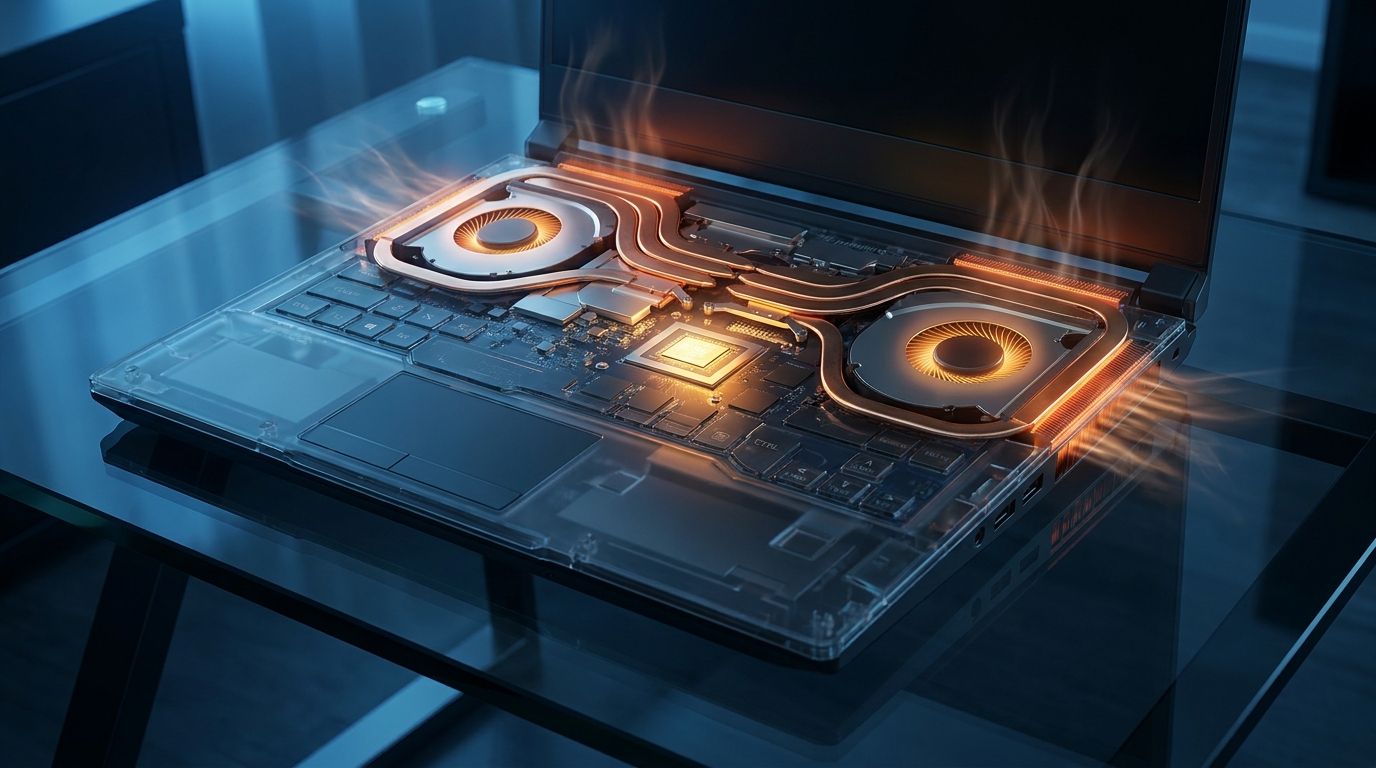
Every component inside a laptop converts electrical energy into useful work — and generates heat as a byproduct. The CPU, GPU, voltage regulators, and even high-speed NVMe SSDs all produce thermal output. In a desktop PC, large case fans, big heatsinks, and spacious airflow paths manage this heat easily. In a laptop chassis — often less than 20mm thin — thermal management becomes one of the most demanding engineering challenges.
The fundamental tension in laptop design is this: more performance requires more power, which generates more heat, which requires more cooling, which creates more fan noise. Every laptop is a set of trade-offs within that equation.
Overheating vs. Thermal Throttling: An Important Distinction
When users say a laptop is “overheating,” they often mean one of two different things:
True overheating occurs when a device reaches temperatures that trigger emergency shutdown or cause hardware damage. Modern laptops have thermal protection systems that prevent this — almost no laptop in 2026 will damage itself through normal use. True overheating is rare.
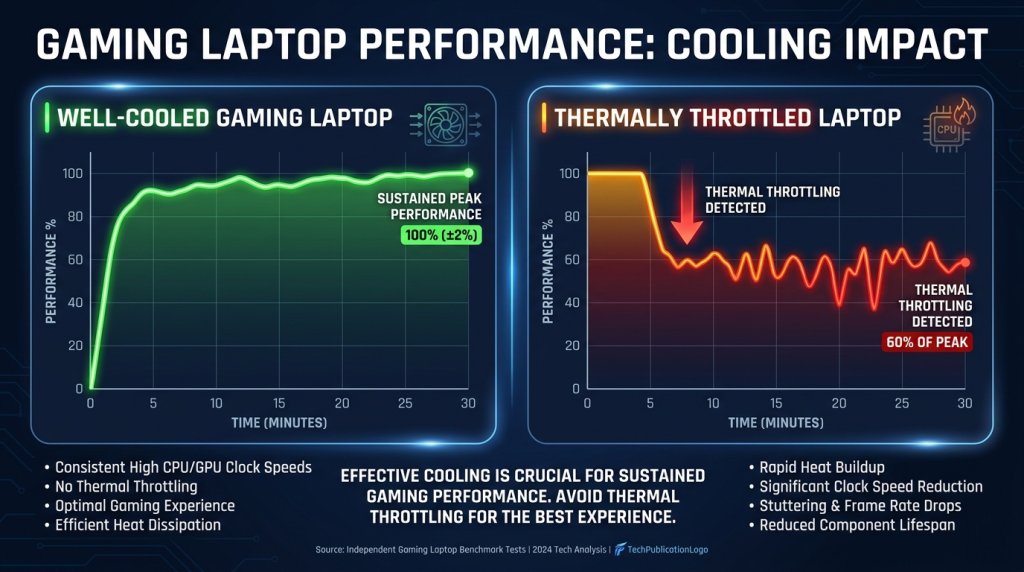
Thermal throttling is far more common and much more relevant to buyers. This occurs when the processor detects it cannot sustain peak performance without exceeding safe thermal limits, and automatically reduces its clock speed to lower heat output. The laptop stays safe, but performance drops noticeably — frame rates fall, render times increase, and the system feels sluggish despite its impressive spec sheet.
Understanding this distinction helps you read reviews more accurately. “It throttles under heavy load” is a performance complaint. “It burned my lap” is something else entirely — and should be treated as a serious red flag in review data.
Which Laptop Categories Are Most Prone to Thermal Issues?
Gaming Laptops: High Performance, High Thermal Load
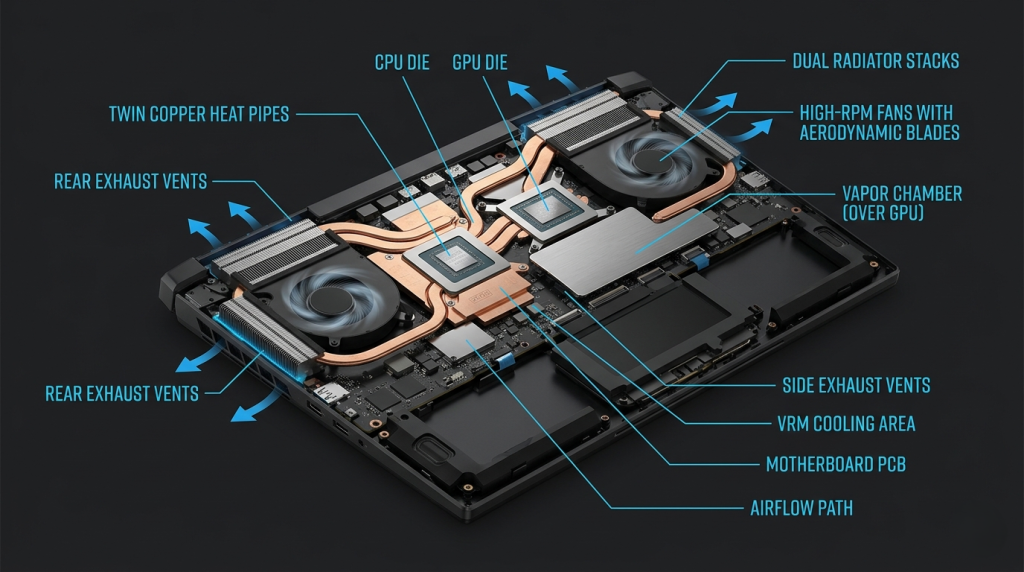
Gaming laptops are the category most consistently associated with thermal discussions — for good reason. A machine carrying an NVIDIA GeForce RTX 50 Series GPU and a high-performance CPU can generate 150–200W of combined thermal output under full load. Managing that in a portable chassis requires aggressive fans, heat pipes, and vapor chambers — all of which produce noise.
This is not a defect. It’s physics. The question is whether the thermal system is well-engineered (fans are effective and spin up only when necessary, temperatures stay below throttling thresholds, noise is present but controlled) or poorly engineered (fans scream constantly, performance still throttles, surfaces become uncomfortably warm).
Reviews for Intel gaming laptops and AMD gaming configurations often distinguish between these two scenarios — and that nuance is exactly what makes reading real user reviews so valuable.
Thin-and-Light Business Laptops: The Silence Trade-Off
Business laptops and 2-in-1 convertibles prioritize quiet operation and battery life over raw performance. Many use low-TDP processors (15–28W) that generate relatively little heat, allowing fans to remain silent during typical productivity tasks.
However, when these machines are pushed — running a video export, training a local AI model, or handling a heavy browser session with many tabs — their small cooling systems may not keep pace. The result is fans that ramp up suddenly and loudly because the thermal headroom is thin.
Copilot+ AI Laptops: A New Thermal Profile
The rise of Copilot+ certified devices has introduced a new thermal dynamic. AI inference workloads on the NPU (Neural Processing Unit) are highly efficient compared to CPU/GPU-based AI processing — meaning on-device AI features run cooler and quieter than many users expect. ARM-based platforms in particular tend to produce less heat, contributing to genuinely fanless or near-silent operation in many scenarios.
Thermal Performance by Category
| Category | Typical Fan Noise | Throttling Risk | Surface Temperature | Best Thermal Management |
|---|---|---|---|---|
| Gaming Laptop (High-End) | High under load | Low (if well-engineered) | Warm to hot (keyboard area) | Vapor chamber + dual fan |
| Gaming Laptop (Budget/Mid) | Moderate-High | Moderate | Warm | Dual heat pipe + single fan |
| Business Ultrabook | Low to silent | Low (light tasks), moderate (heavy tasks) | Cool to warm | Single fan or fanless |
| 2-in-1 Convertible | Low to silent | Moderate | Cool | Passive or small fan |
| Copilot+ ARM Laptop | Near-silent | Very low | Cool | Passive cooling or minimal fan |
| Mobile Workstation | High | Low | Hot (bottom chassis) | Triple heat pipe + vapor chamber |
What to Look for in Reviews to Assess Thermal Risk
When reading reviews for any laptop, these are the thermal red flags and green flags to watch:
Red Flags:
- Reports of keyboard deck being hot to the touch during normal tasks
- Fans audible during web browsing or document work
- Performance dropping significantly during extended gaming or rendering sessions
- Multiple reviews mentioning the same thermal complaint within a short window after launch
Green Flags:
- Reviews noting fan ramp-up only during heavy loads, returning to quiet after
- No reports of thermal throttling during typical use cases
- Positive mentions of the cooling system sustaining performance during long sessions
- Firmware update notes addressing thermal behavior (indicates manufacturer responsiveness)

How to Minimize Thermal Issues After Purchase
Even a well-designed laptop benefits from thoughtful use habits:
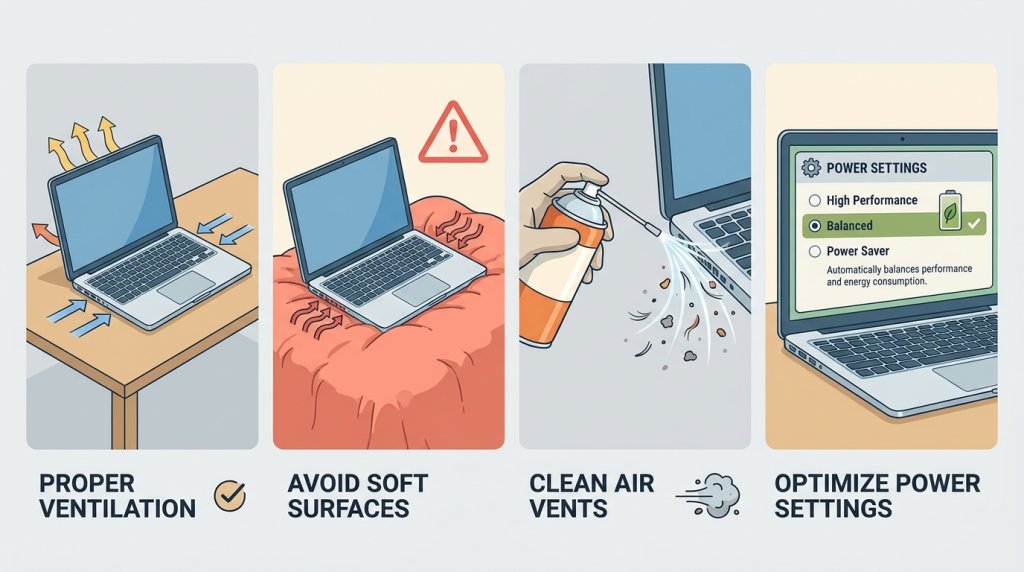
- Use on hard, flat surfaces — soft surfaces like beds or sofas block bottom vents and trap heat
- Keep the chassis clean — dust accumulates in vents over time; compressed air every 6 months improves airflow
- Adjust power mode settings — most Windows laptops allow switching between Balanced, Best Performance, and Efficiency modes
- Monitor CPU/GPU temperatures — free tools like HWiNFO provide real-time thermal data so you know your actual operating range
- Use manufacturer performance modes — many gaming laptops include a software utility to optimize fan curves
The Bottom Line
Fan noise and heat are not signs that a laptop is broken — they’re signs that it’s doing its job. The real question is whether thermal management is well-calibrated for the category. A gaming laptop that runs warm and loud under a full RTX 50 load but stays cool and quiet during everyday tasks is doing exactly what it should. A business laptop that fans up loudly just from opening a browser has a problem.
Use the Newegg Laptop Finder to narrow your options by category and use case, and read recent verified reviews specifically for thermal and noise feedback before committing. For deals on premium configurations with established track records, Newegg Premium Laptop Upgrades is a reliable starting point — with models that have passed the real-world user scrutiny that specs alone can never replicate.
Related Posts
- Laptop Upgrade Planning Guide 2026: Essential Pre-Purchase Checks for Future Expandability
- The Critical Role of Laptop Cooling: Why Thermal Management Matters More Than Ever in 2026
- Overview: MSI Prestige 14 EVO Specs and Capabilities
- Wi-Fi 8 Is Almost Here: What ASUS’s Wi-Fi 8 Routers Actually Mean
- Best OLED Gaming Monitors in 2026